How to Check a Page is Indexed through Google Search Console?
How to Check a Page is Indexed through Google Search Console?
Knowing whether Google has crawled and indexed your web pages is critical for SEOsuccess. If a page isn’t indexed, it simply won’t appear in search results—no matter how good your content is.
In this guide, you’ll learn what indexing means, why it matters, and two reliable ways to check page indexing using Google Search Console.
What Is Indexing in SEO?
In SEO terms, indexing is the process by which Google discovers, analyzes, and stores web pages in its database (called the Google Index).
A simple way to understand this is:
Google crawls your page, reads its content, and then saves it in its index—just like placing a book on a library shelf for future searches.
Only indexed pages are eligible to appear in Google search results. That’s why checking indexing status should be a regular part of your SEO audits.
How to Check If a Page Is Indexed in Google Search Console
Google Search Console offers two effective ways to verify whether a page has been crawled and indexed. Each method serves a different purpose depending on whether you need real-time data or a site-wide overview.
Method 1: Use the URL Inspection Tool (Best for Real-Time Checks)
The URL Inspection Tool is the most accurate way to check if a specific page is indexed by Google. It also helps identify crawl, indexing, and rendering issues.
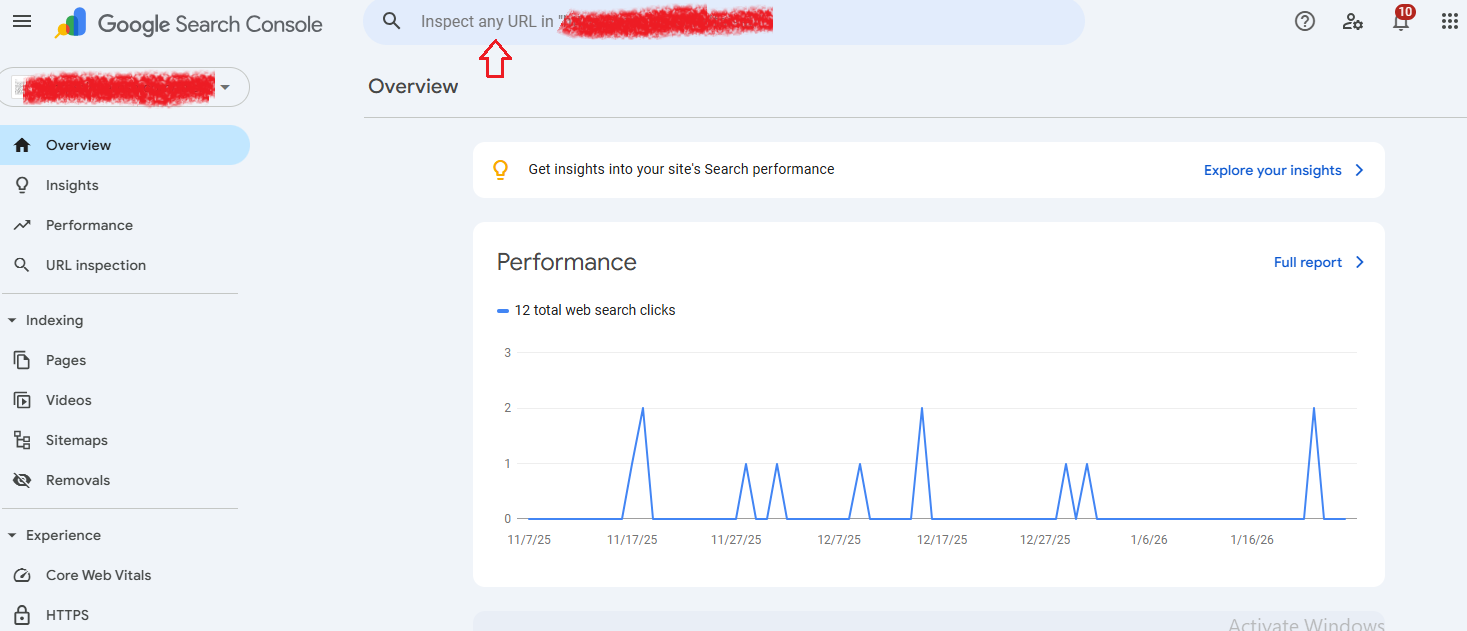
Log in to Google Search Console Sign in to your Google Search Console account and select the relevant property. If your website isn’t added yet, complete the verification process first.
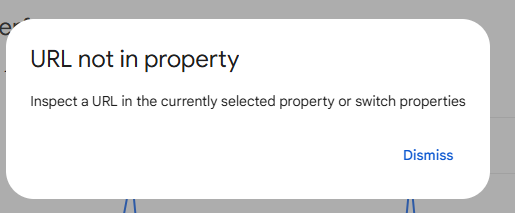
Enter the Page URL Paste the full URL (including https://) of the page you want to check into the search bar at the top and press Enter.
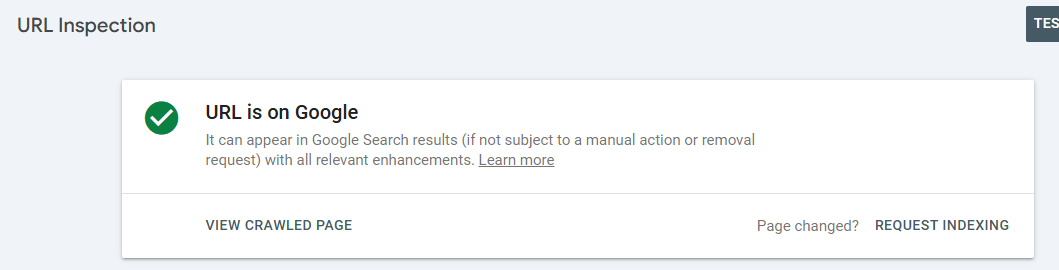
Review the Indexing Status
If the page is indexed, you’ll see: “URL is on Google.”
If it’s not indexed, you’ll see: “URL is not on Google,” along with the reason.
Choose Top SEO Agency in Karachi
Contact us now and let's embark on the journey to online success together!
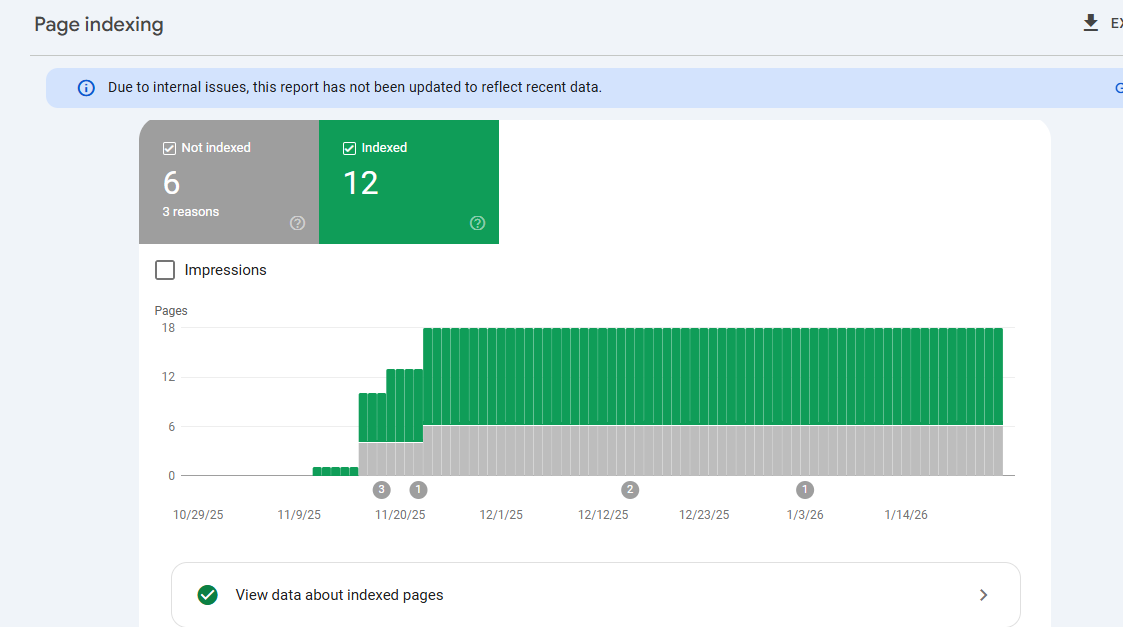
Method 2: Check the Page Indexing Report (Best for Site-Wide Insights)
The Page Indexing Report gives a broader view of how Google is indexing your website overall. It’s useful for identifying patterns and large-scale indexing issues.
How to Access the Page Indexing Report
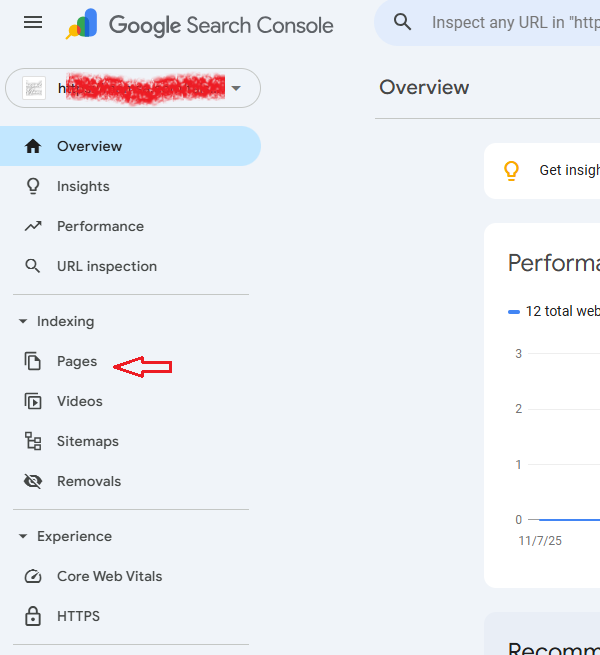
In Google Search Console, open the left sidebar.
Click on Indexing and then select Pages.
Review the report to see:
Indexed pages
Pages with errors
Pages excluded from indexing
Pages indexed with warnings
This report categorizes URLs into different statuses, helping you understand which pages need attention.
Important Note
The Page Indexing Report is not real-time. For the most current indexing status of a specific URL, always rely on the URL Inspection Tool.
Choose Top SEO Agency in Karachi
Contact us now and let's embark on the journey to online success together!