How to Track Organic Traffic in Google Analytics 4?
How to Track Organic Traffic in Google Analytics 4?
Understanding how much traffic your website receives from organic search is essential for measuring SEO performance. Google Analytics 4 makes this easy once you know where to look. Follow the steps below to view and analyze your organic traffic data accurately.
Step 1: Open the Reports Section in GA4
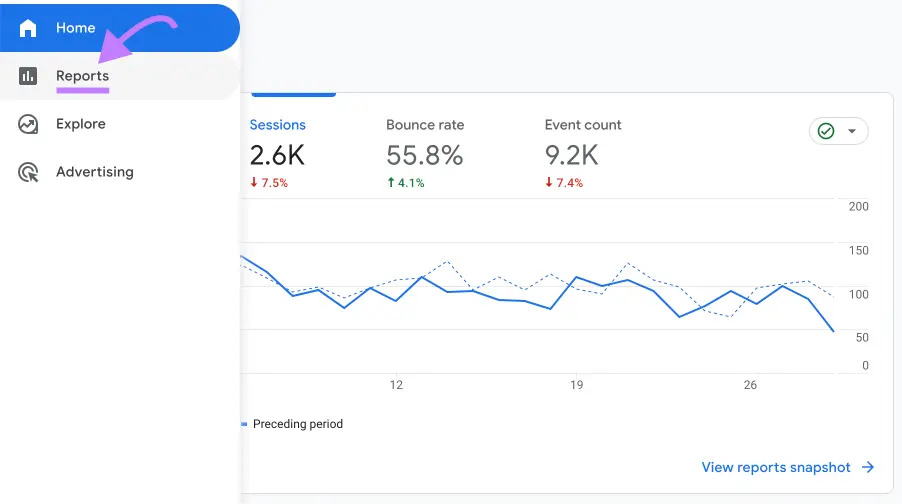
Log in to your Google Analytics 4 account and open your property. From the left-hand navigation menu, click on Reports. This will take you to the Reports Snapshot, which provides an overview of your website’s performance.
Step 2: Navigate to Traffic Acquisition
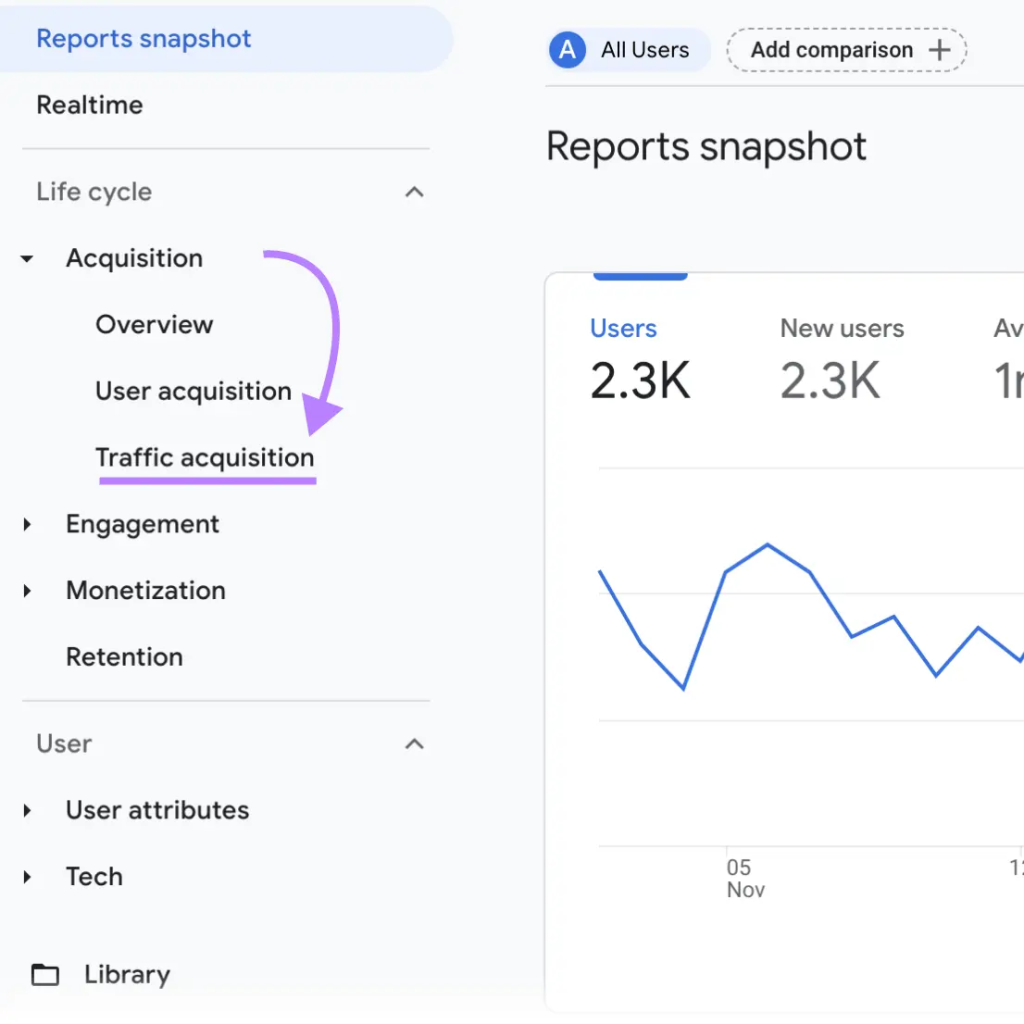
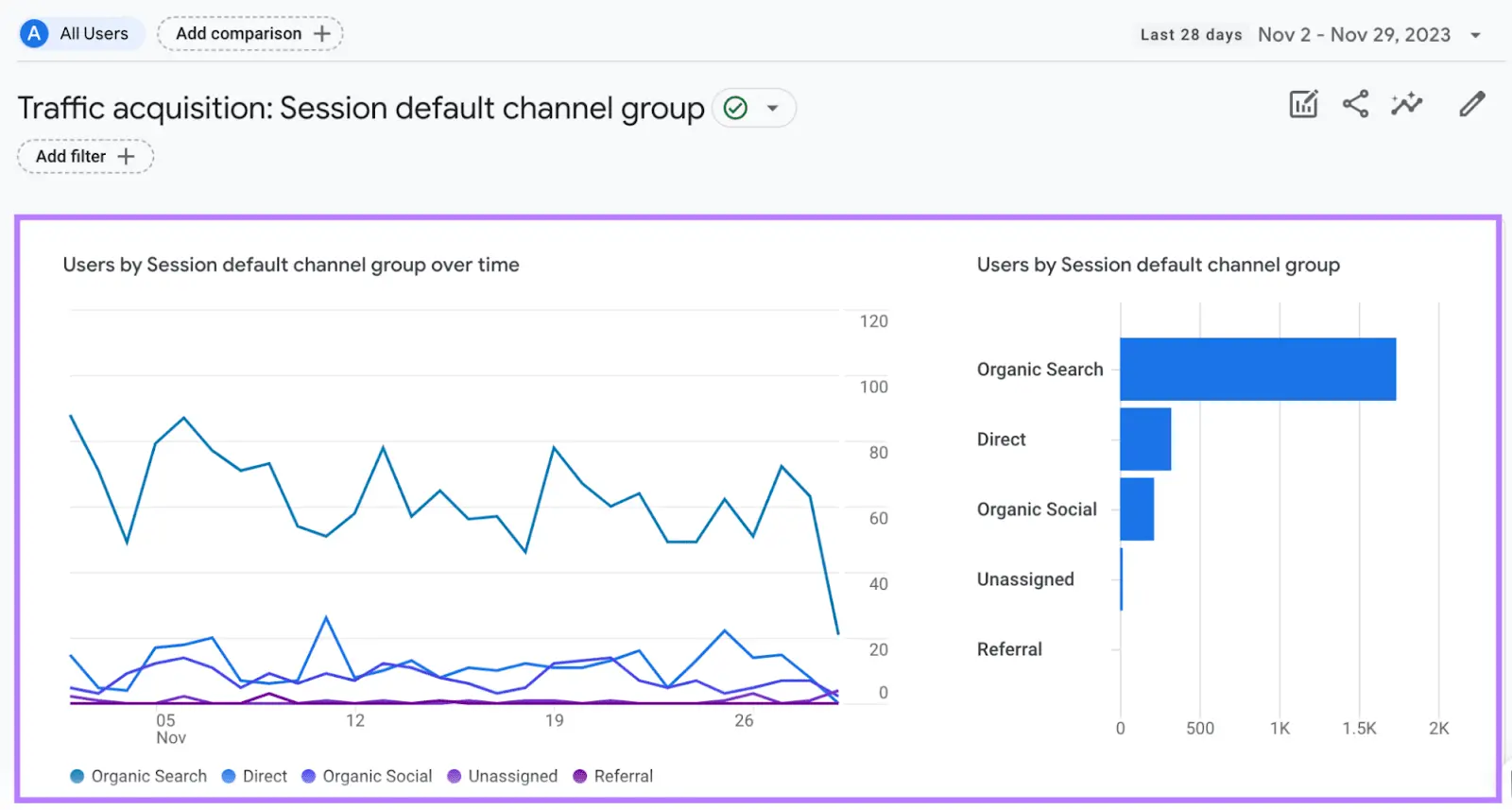
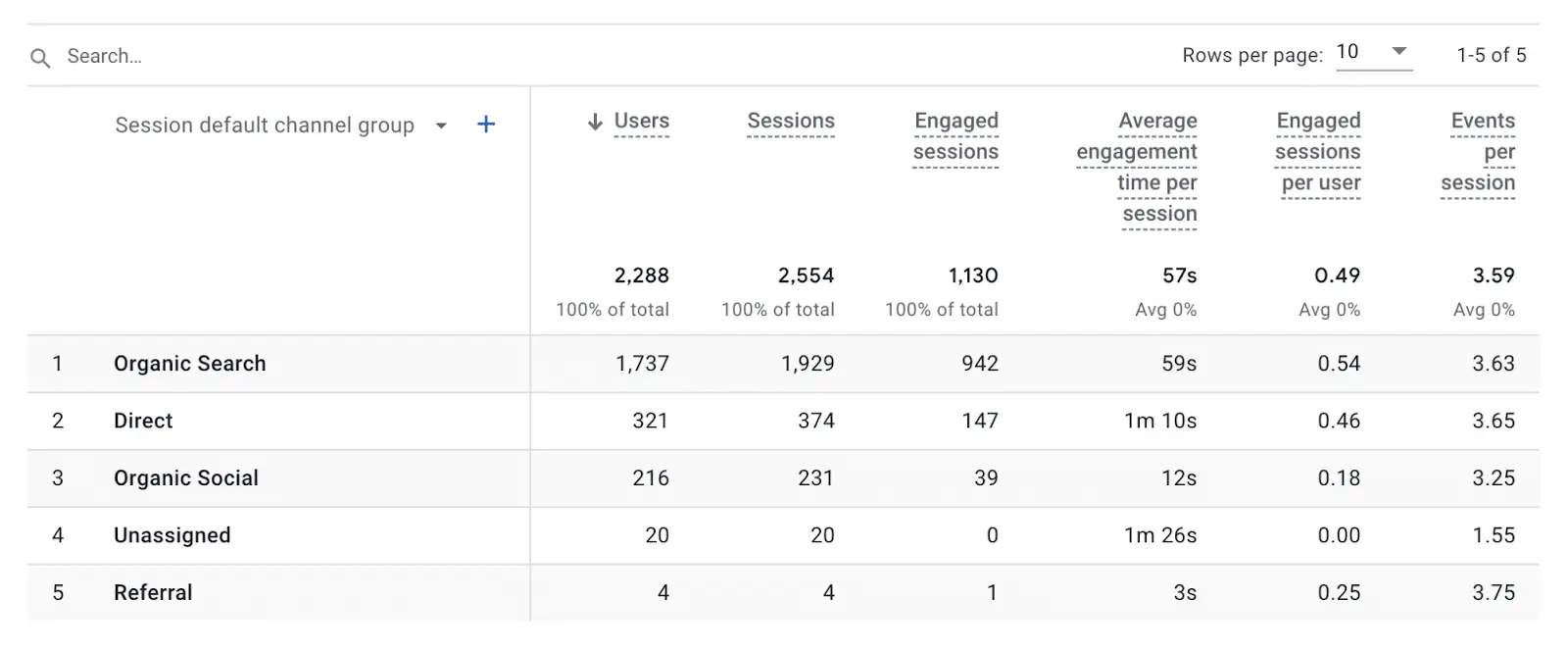
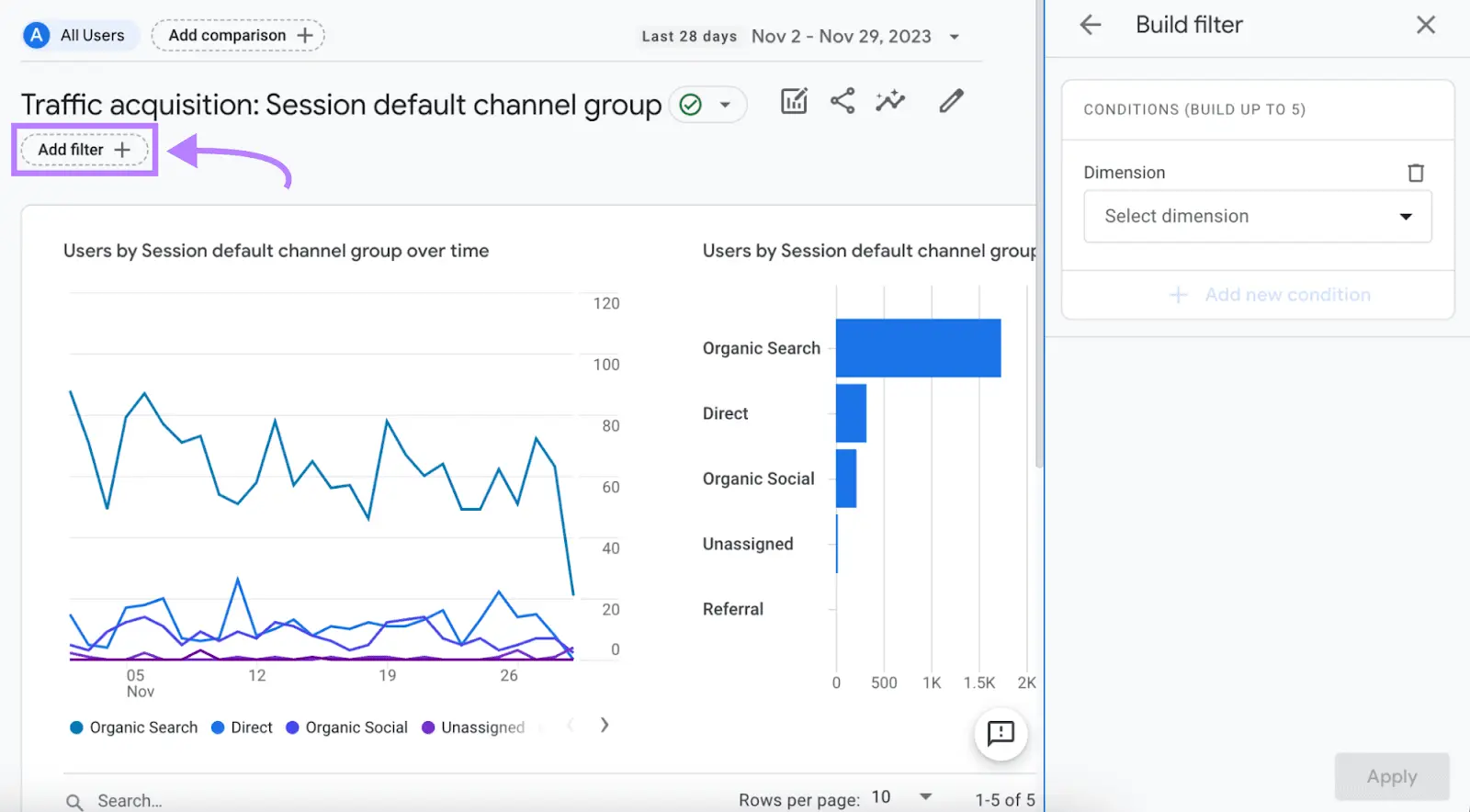
Within the Life Cycle section, click on Acquisition, then select Traffic Acquisition. This report shows detailed information about where your website traffic is coming from, including organic search, direct visits, referrals, and social channels.
Scroll down to view traffic performance broken down by different channels.
Choose Top SEO Agency in Karachi
Contact us now and let's embark on the journey to online success together!
To analyze only organic search traffic, you’ll need to apply a filter. Click on “Add filter +” at the top of the report to open the filter configuration panel.
Filtering is important because it allows you to analyze organic data separately and apply further conditions if needed.
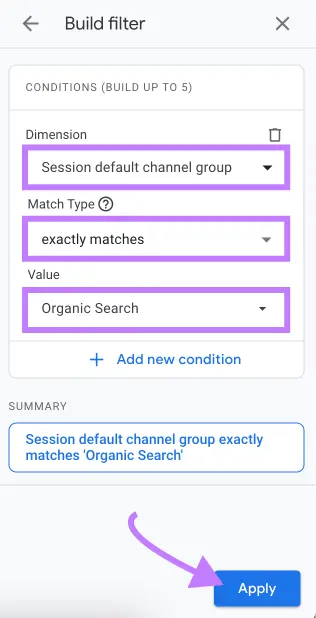
Step 4: Configure the Filter Settings
Set the filter using the following options:
Dimension: Session default channel group
Match type: Exactly matches
Value: Organic Search
Once selected, click Apply to activate the filter.
Step 5: Review Your Organic Traffic Data
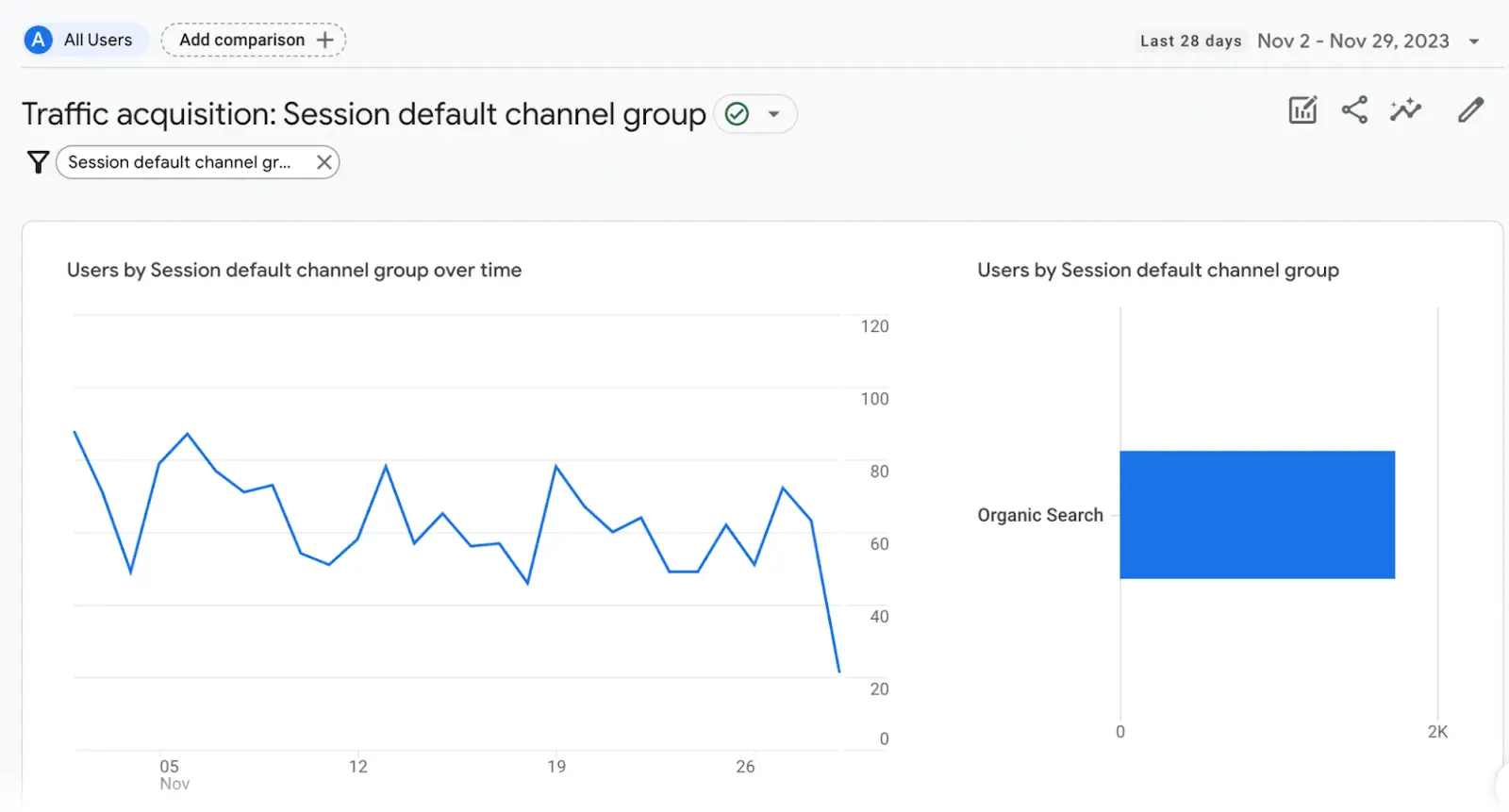
After applying the filter, the report will now display only organic search traffic. You can review key metrics such as sessions, engagement, conversions, and user behavior coming specifically from search engines.
This filtered view helps you accurately evaluate your SEO efforts and track growth over time.
Choose Top SEO Agency in Karachi
Contact us now and let's embark on the journey to online success together!