Press ESC to close

How to track conversions in Google Ads using Google Tag?

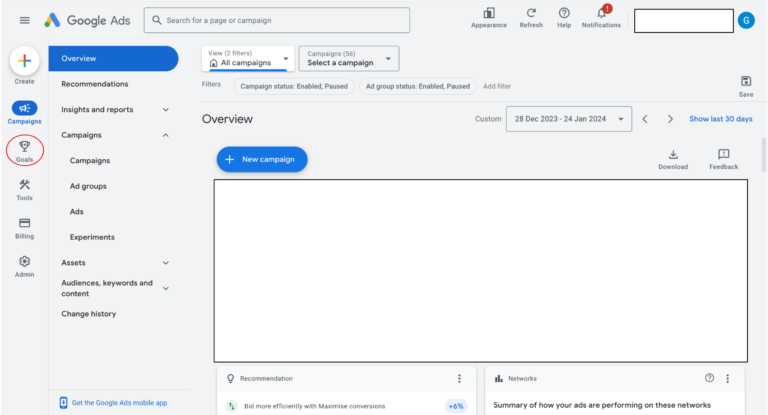
Step 1: Open the Google Ads interface and click on “Goals.”

Google Ads

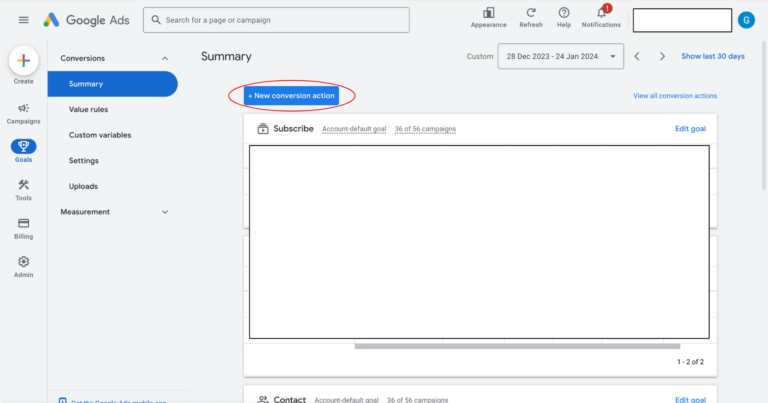
Step 2: Click “New conversion action”.

Ads Conversations

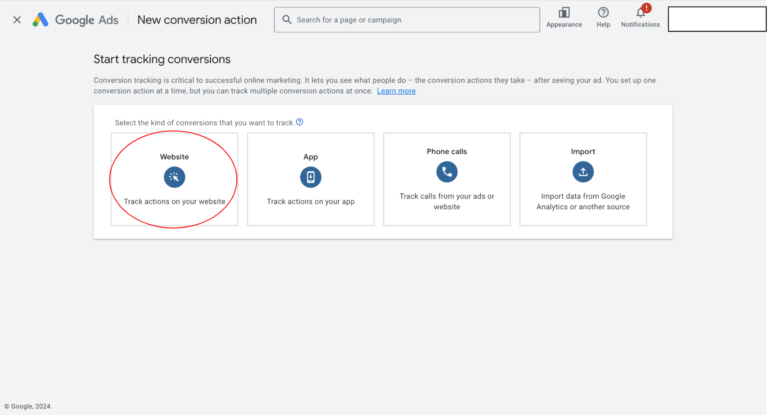
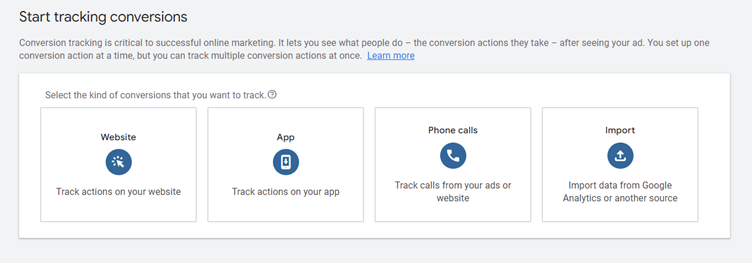
Step 3: On conversation types page, Click “Website”.

Website Conversions

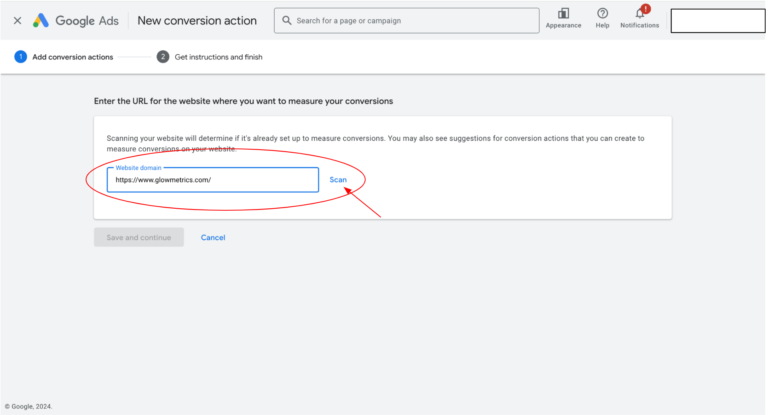
Step 4: Enter your website domain and click “Scan”.

Conversion Action

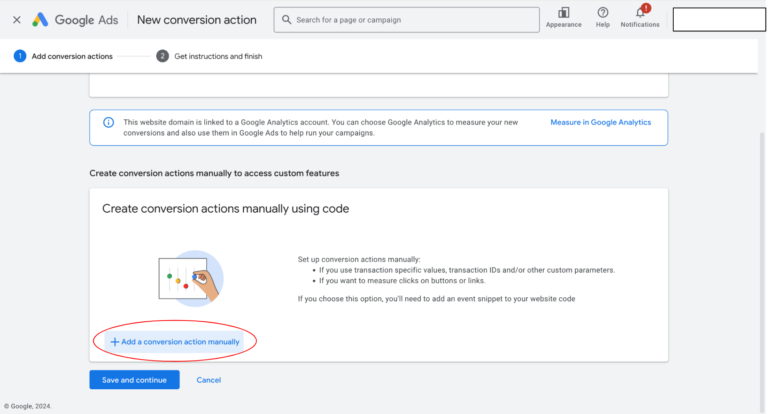
Step 5: Select “Add a conversion action manually.”

Conversion Action

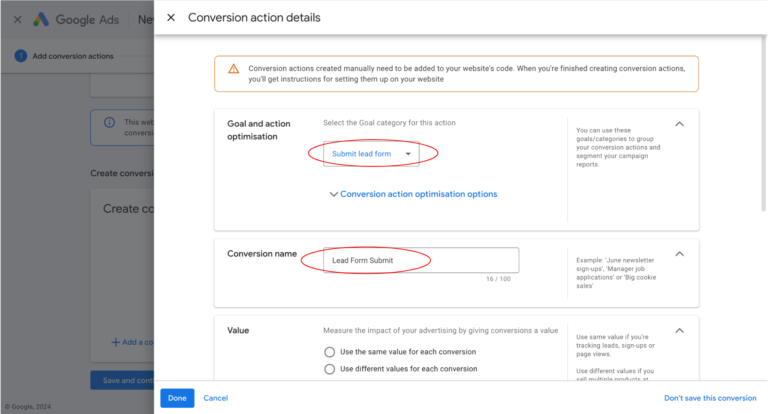
Step 6: Choose your conversion type from the dropdown. In this example, we are using “Submit lead form.” Name the conversion clearly so it’s easy to recognize later.

Google Ads

Choose Top Google Ads Management in Karachi

Contact us now and let's embark on the journey to online success together!
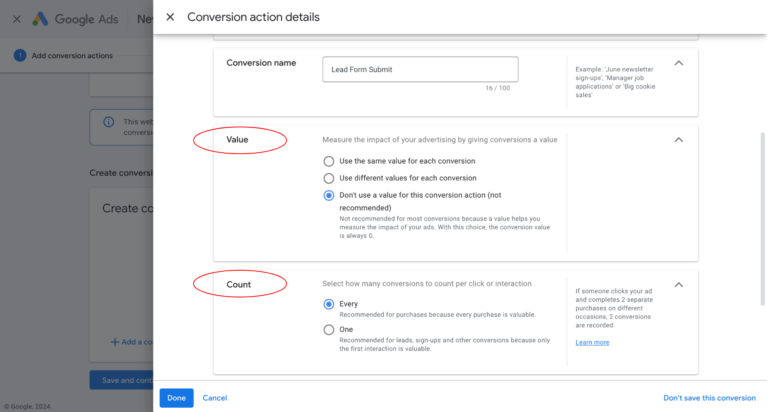
Step 7: Set your conversion value and choose how conversions should be counted.

  • For leads, choose “One” (only counts one submission per user per ad click).
  • For purchases, choose “Every,” so all purchases after a click are counted.
Google Ads

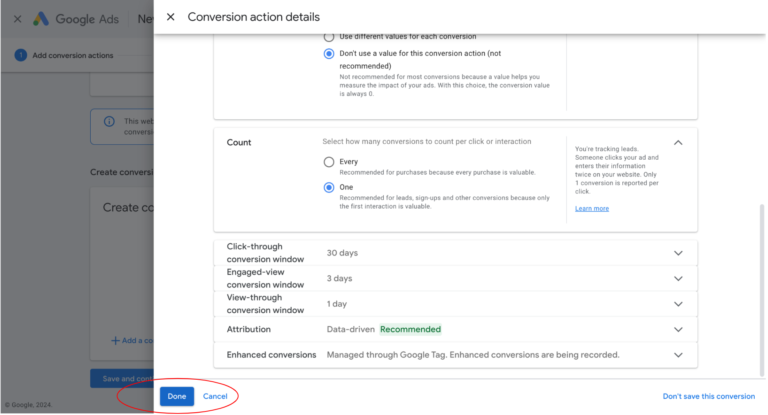
Step 8: Adjust the remaining five settings based on your needs, then click “Done.”

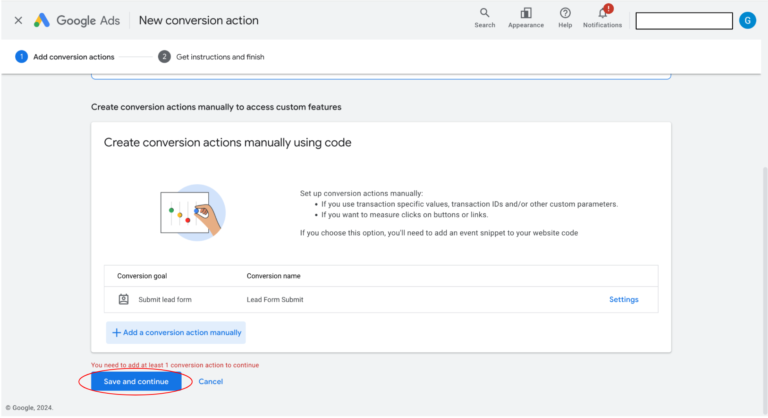
Step 9: Click “Save and continue.”

Ads Conversions
Google Ads

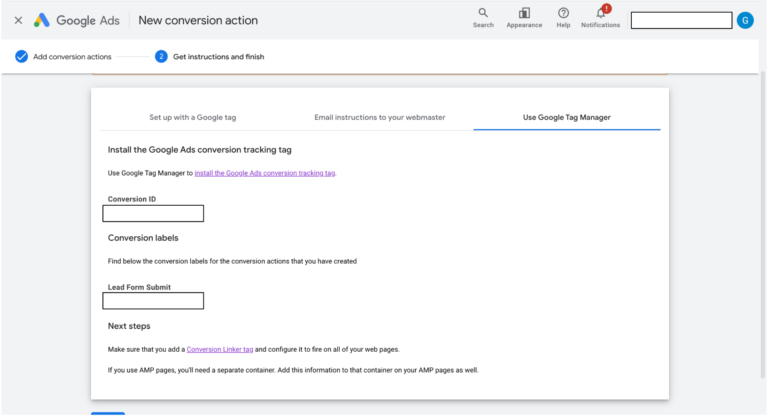
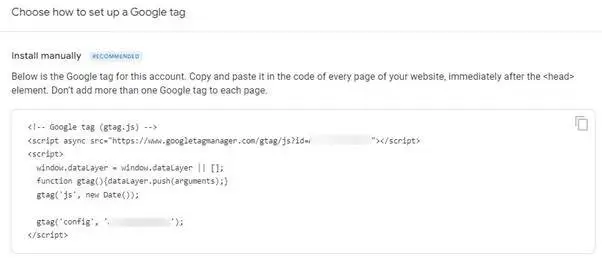
Step 10: Under “Get instructions and finish,” choose Setup with a Google tag

Google Tag

Step 11: Paste a Google Tag into your website code

  1. Open your website’s HTML file or through your CMS like WordPress or Shopify
  2. Locate the <head> section of the site’s HTML
  3. Paste the Google Tag before the closing </head> tag
  4. Replace G-XXXXXXXXXX with your actual Google Tag ID
  5. Save and publish
Google Conversion Code

Choose Top Google Ads Management in Karachi

Contact us now and let's embark on the journey to online success together!
lgoos-new

Lets Connect With Us

Grow Your Brand

by partnering with Boundless Technologies.