Linking Google Search Console with Google Analytics 4 (GA4) allows you to view organic search performance directly inside your analytics reports. This integration helps bridge the gap between search visibility and on-site user behavior, making SEO analysis more actionable.
Prerequisites Before Linking
Before starting the integration, confirm that you have the required permissions for both platforms:
Without these permissions, the linking option will not be available.
Step 1: Open GA4 Admin Settings
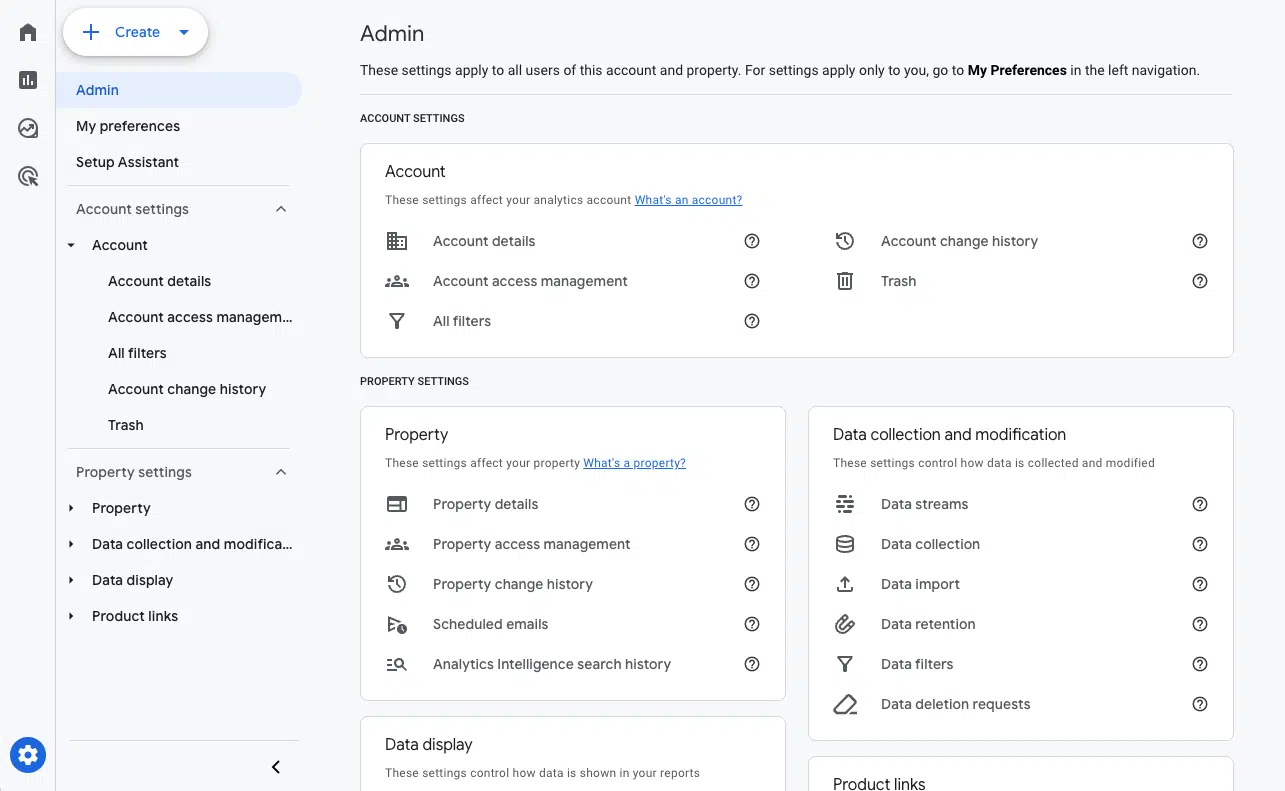
Log in to your Google Analytics 4 account and select the correct property. Click on Admin in the bottom-left corner of the interface to access property settings.
Step 2: Navigate to Search Console Linking
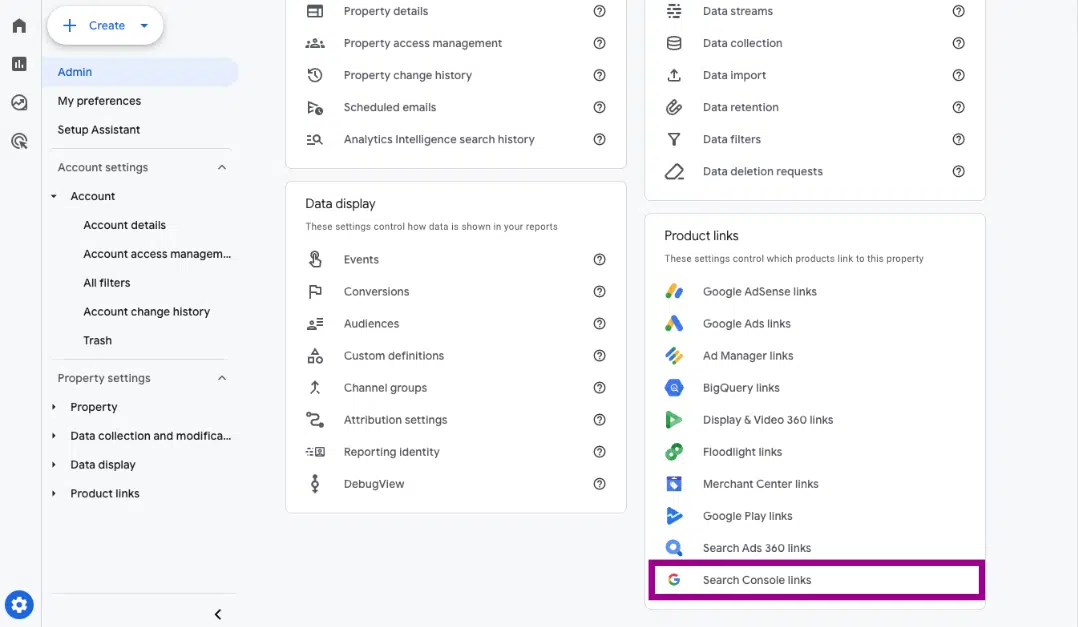
Inside the Property Settings column, look for Product Links. Click on Search Console Links to open the integration panel.
Choose Top SEO Agency in Karachi
Contact us now and let's embark on the journey to online success together!
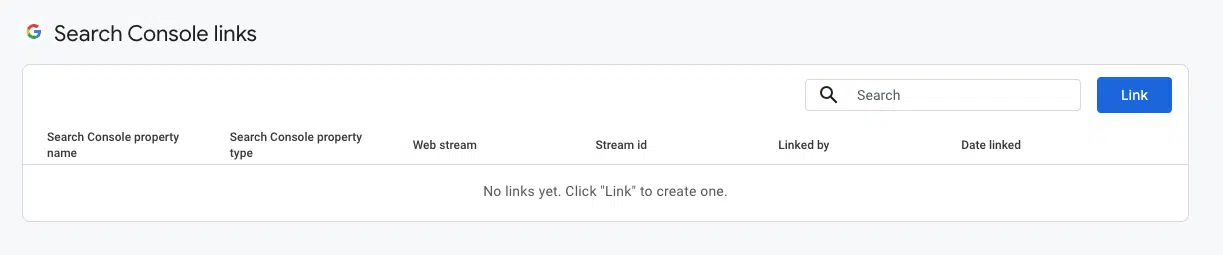
Once the Search Console Links screen opens, click the Link button. This will start the setup process for connecting your Search Console property.
Step 4: Select the Correct Search Console Property
GA4 will display a list of Search Console properties you have access to. Choose the property that matches your website and confirm the correct web data stream associated with your GA4 property.
Carefully review the selected domain and stream to ensure they match your website.
Step 5: Confirm and Submit
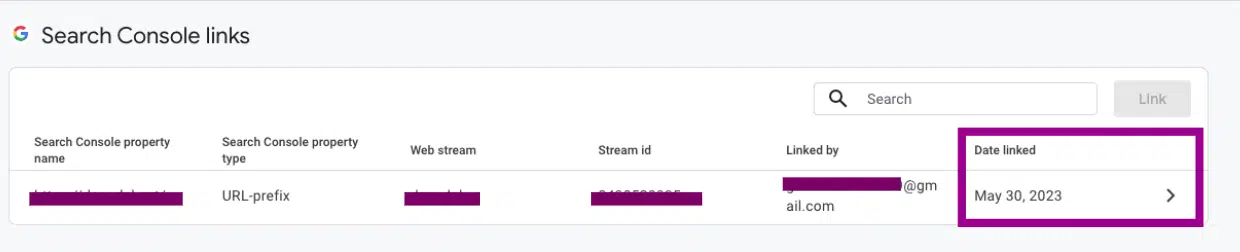
After verifying all details, submit the setup to complete the integration. Once confirmed, GA4 and Search Console will be successfully linked.
Choose Top SEO Agency in Karachi
Contact us now and let's embark on the journey to online success together!